ExpressVPN has earned its place as one of the most trusted and reliable VPN services in the industry. From its clean interface and impressive speed to its strong privacy features and ability to unlock restricted content, it consistently delivers on every front.
This ExpressVPN review is for anyone searching for the right VPN but feeling overwhelmed by the number of choices available.
I have been using ExpressVPN for about two months to access blocked Prime Video content in India, use CapCut in India, download torrents, surfing ad free internet and handle a few other tasks. This review gives you everything you need to know based on real use and honest results.

ExpressVPN
ExpressVPN delivers fast, secure, and reliable performance with strong privacy protection, easy setup, and smooth access to geo blocked content.
- 105 Countries
- 24/7 Customer Support Service
- Upto 14, 12 & 10 Simultaneous Connections. Depends on Plan
- Strict No Log Policy, Parental Control, Ad Blocker
- 30 Days Money Back Guarantee
ExpressVPN Signing & Multi Device Setup
Signing up for ExpressVPN is a smooth and simple experience. Once your payment is complete, you can download the app on almost any device.
After installation, log in with your credentials to get started. You can sign in using your password or through a secure email link.
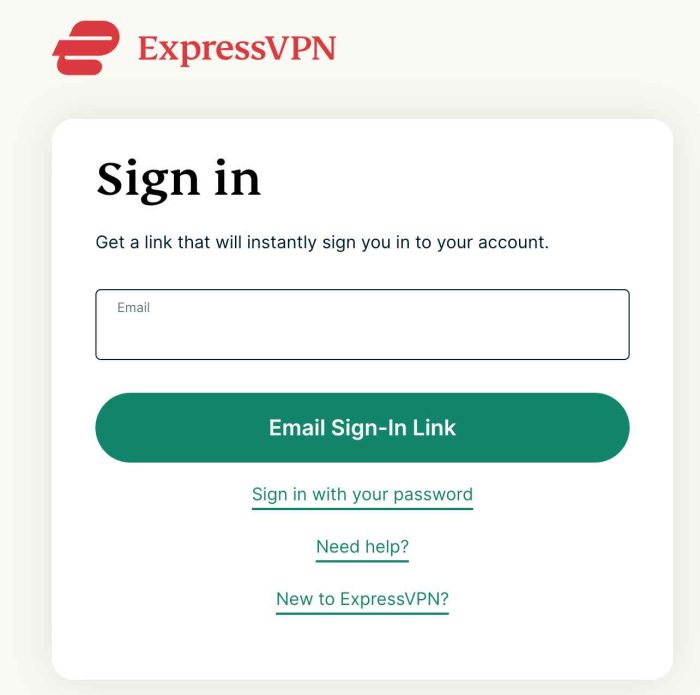
If you prefer not to set a password, you can also sign in using email link, which in my experience is a safer and more convenient way to access ExpressVPN on any device. Especially if you trouble remembering so many passwords.
To do that, simply enter your email associated with ExpressVPN account and click on ‘Signin with Email Link’ instead of entering the password and you will receive a link in your inbox. Click on that and login to your ExpressVPN account.
Multi Device Setup
ExpressVPN works across all major platforms including Windows, Android, iOS, macOS, Linux, Android TV, tvOS, Chrome, Firefox, and more.
The Basic plan supports up to 10 simultaneous connections, the Advanced plan increases that to 12, and the Pro bundle allows up to 14 devices at once.
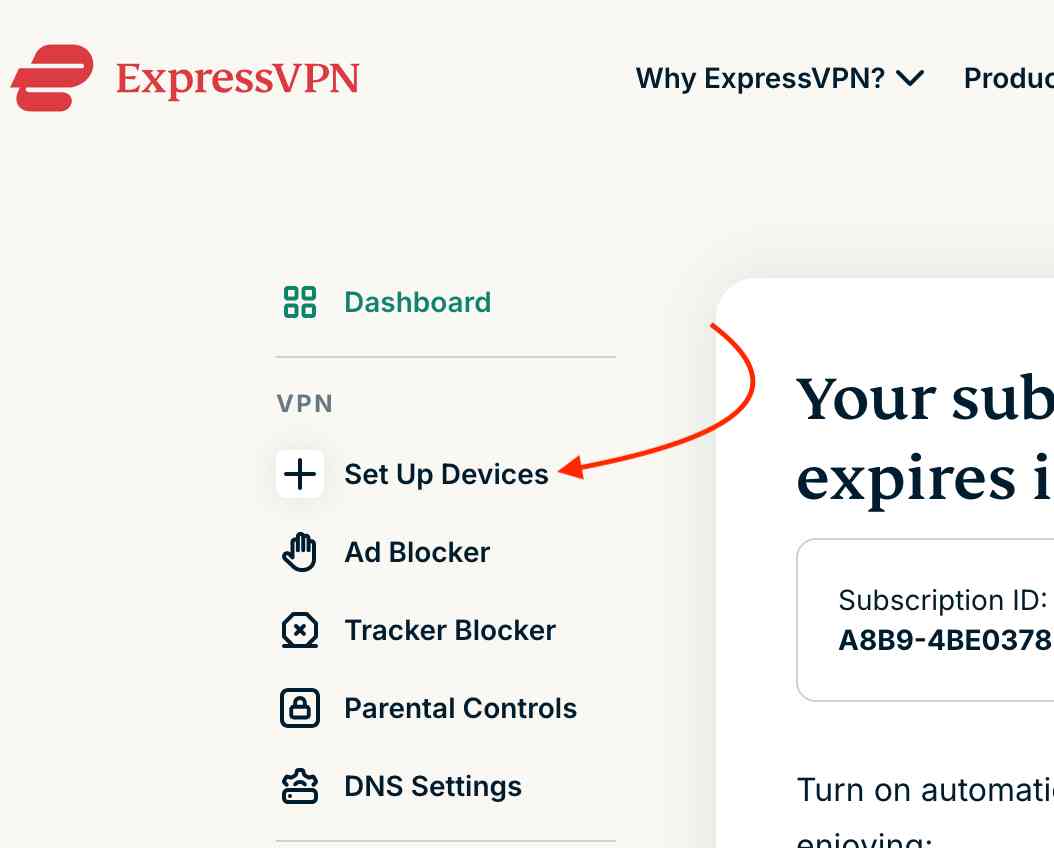
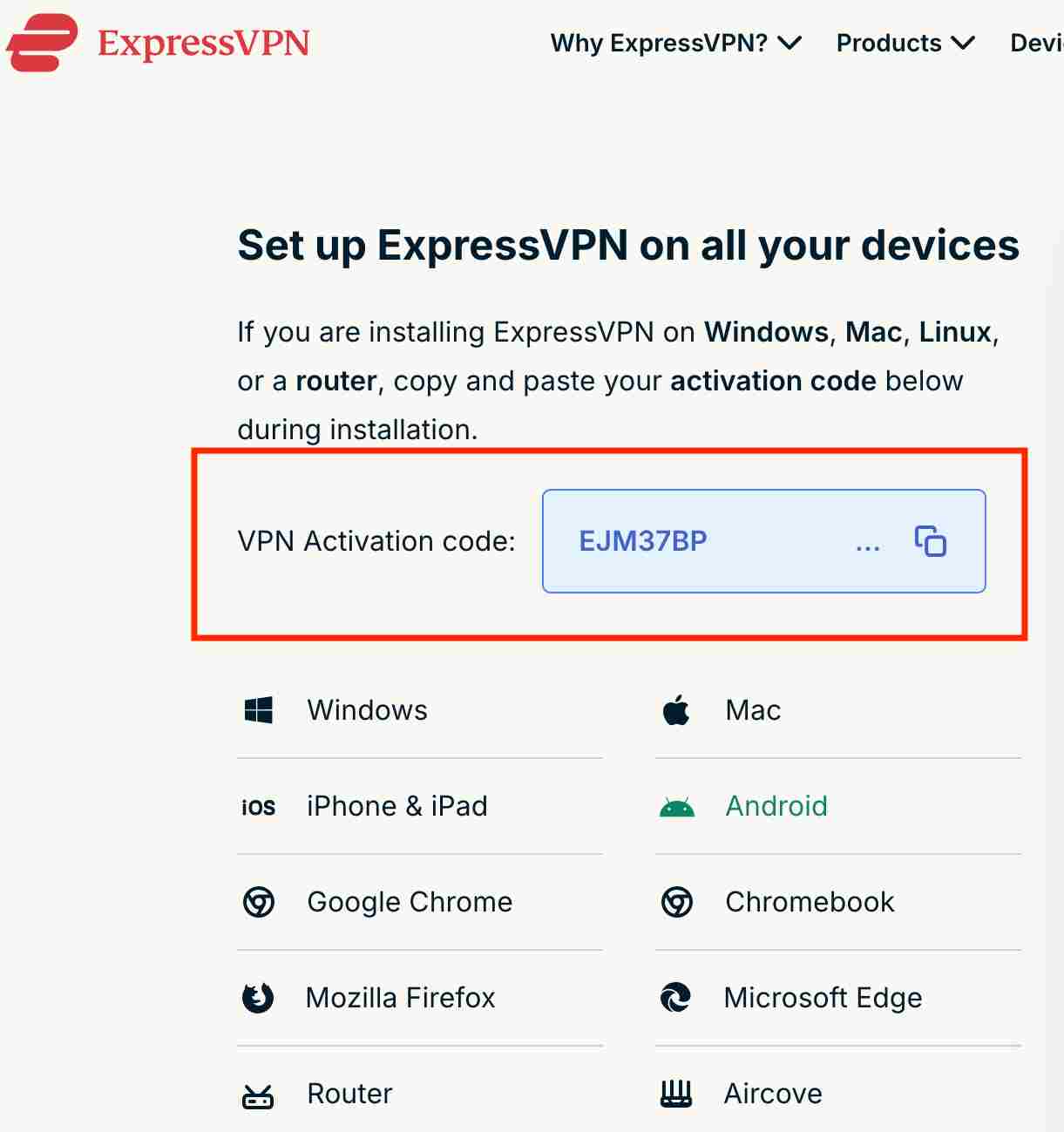
To set up the VPN on a new device, go to your account page, select Setup a device, then copy and paste the VPN activation code into the app on the device you want to configure. You can also set up a new device directly from the ExpressVPN app.
Open the hamburger menu and select Setup a new device.
This will redirect you to your browser where you can copy the activation code. Enter the code on the new device and you are ready to use ExpressVPN.
ExpressVPN User-Interface & Features
The user interface of ExpressVPN is different on for PCs and Smartphone. Here is breakdown of Mac and Android interface.
Mac/Windows Interface
The user interface of ExpressVPN is clean and easy to navigate, with all key controls right in front of you. On the home screen, you will find a large Connect button along with the selected server location.
With one click, you can browse and choose from servers spread across 105 countries.
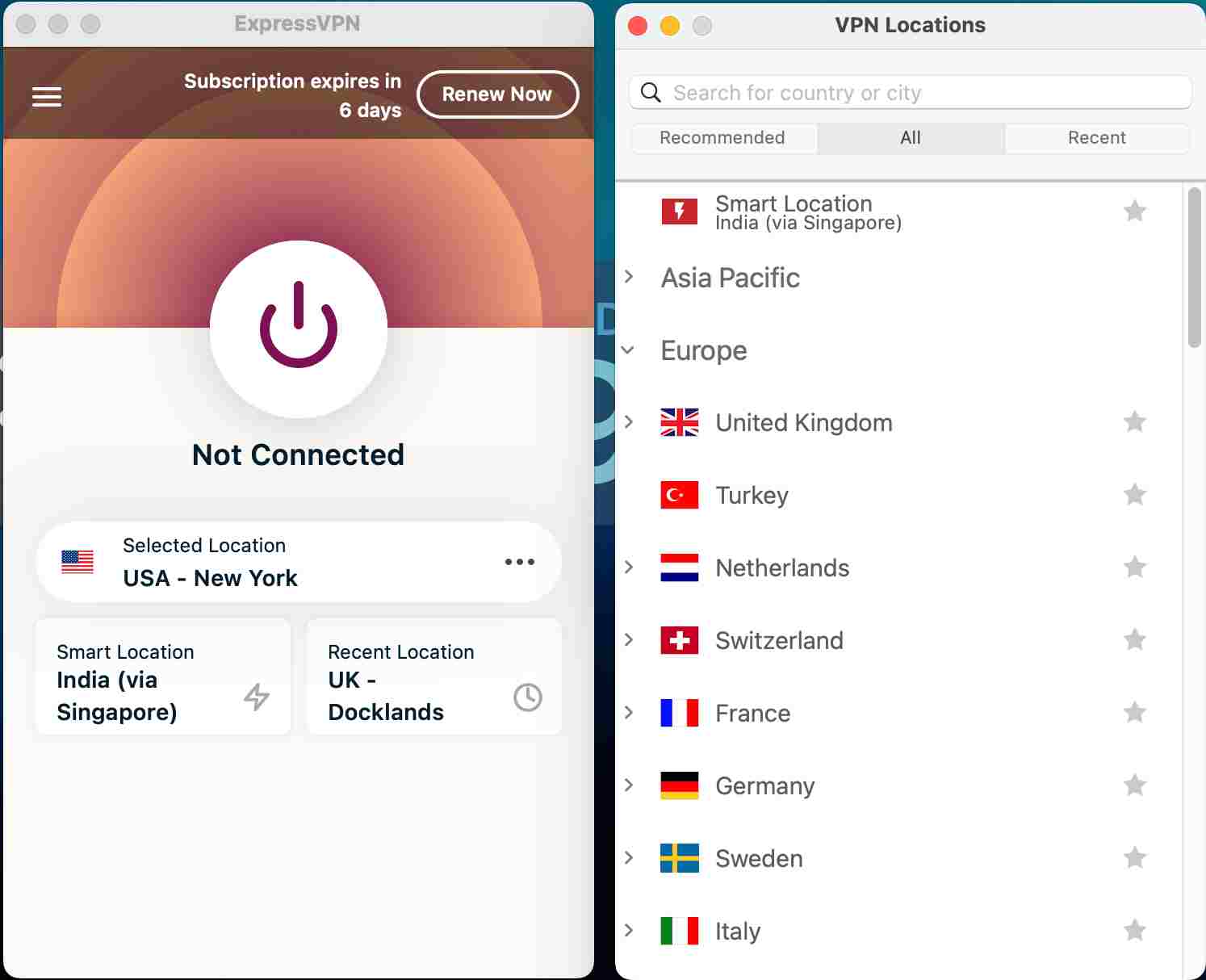
For advanced features, open the accordion menu. Here you will find different settings organized under clear tabs.
The Advanced Protection section includes Ad Blocker, Parental Control, and Threat Manager. If you want to switch between protocols like Lightway UDP, Lightway TCP, WireGuard, OpenVPN UDP, OpenVPN TCP, and IKEv2, head to the Protocol tab.
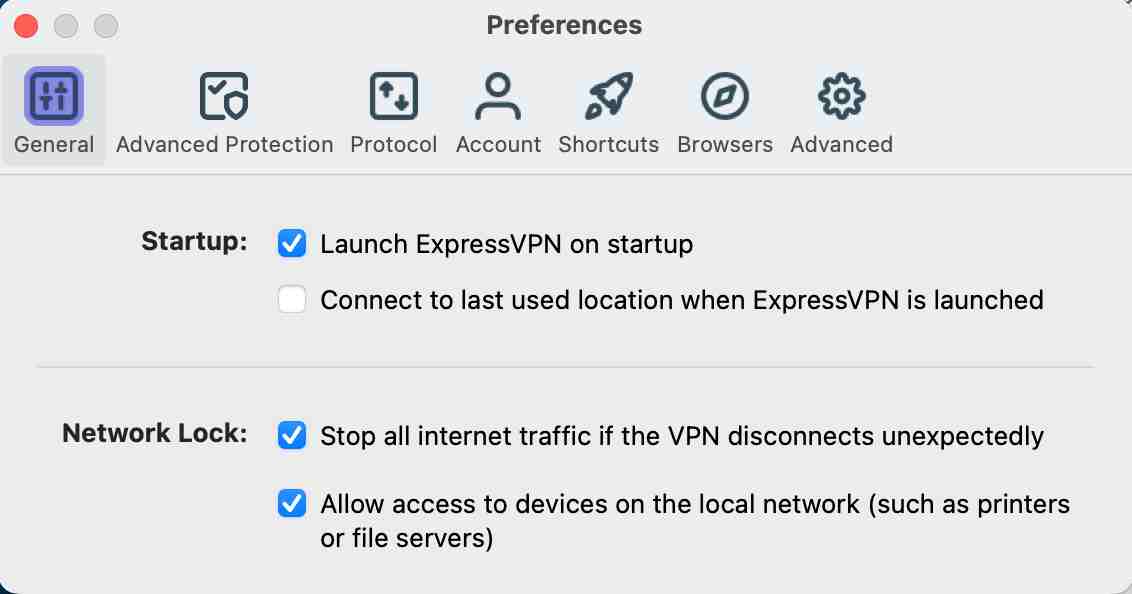
The Kill Switch on Mac interface appears as ‘Network Lock’ under the ‘General tab’ and it blocks all internet traffic if the VPN disconnects unexpectedly.
Smart Location is a handy tool when you want the lowest ping and fastest speed based on your region. It is not ideal if you need cross country routing to bypass censorship or access content restricted to another country.
On Android
The layout is complete different from what you see on PC or Mac. It is more intuitive, attractive and detailed.
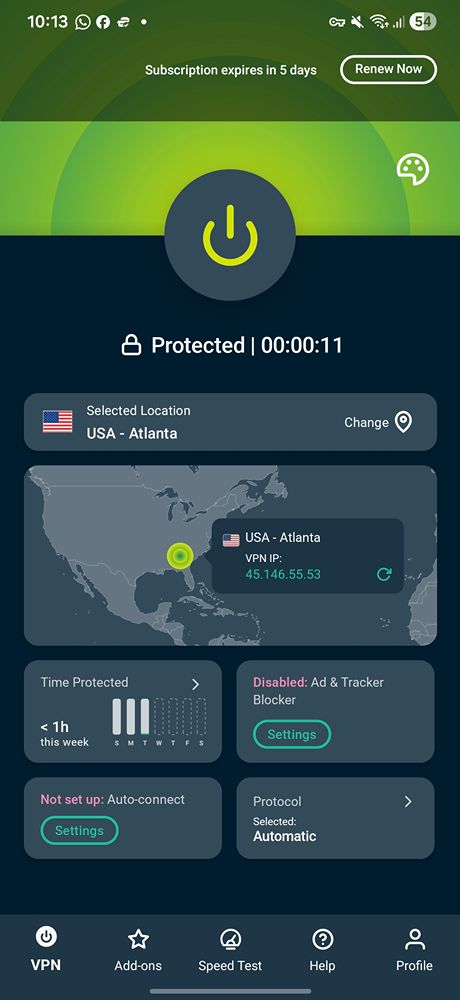
You will find features like a Kill Switch, a built-in speed test, split tunneling, blockers, and easy protocol switching. There are also customization options so you can change the app color and even the app icon.
On Android, ExpressVPN offers one of the most polished and intuitive interfaces I have used; compared with CyberGhost VPN, IPVanish, and Surfshark, it feels the easiest to navigate and most visually refined.
Speed
Many VPNs, especially free ones, slow down your download and upload speeds once you connect, but that has not been my experience with ExpressVPN. The same also applies to other premium options like CyberGhost and Surfshark.
On Mac
I tested ExpressVPN using Speedtest.net on Mac and inbuilt Speed Test of Express VPN. My base broadband plan is 100 Mbps on optical fiber, and I usually get a steady 55 to 60 Mbps without a VPN. All tests were done over WiFi through a TP Link router, so a wired LAN setup would deliver even better results.
ExpressVPN performed well in download speed tests. When connected to the India server through Singapore, I reached 48 Mbps. When connected to a New York server in the USA, the speed climbed to 58 Mbps, which is impressive for any VPN.
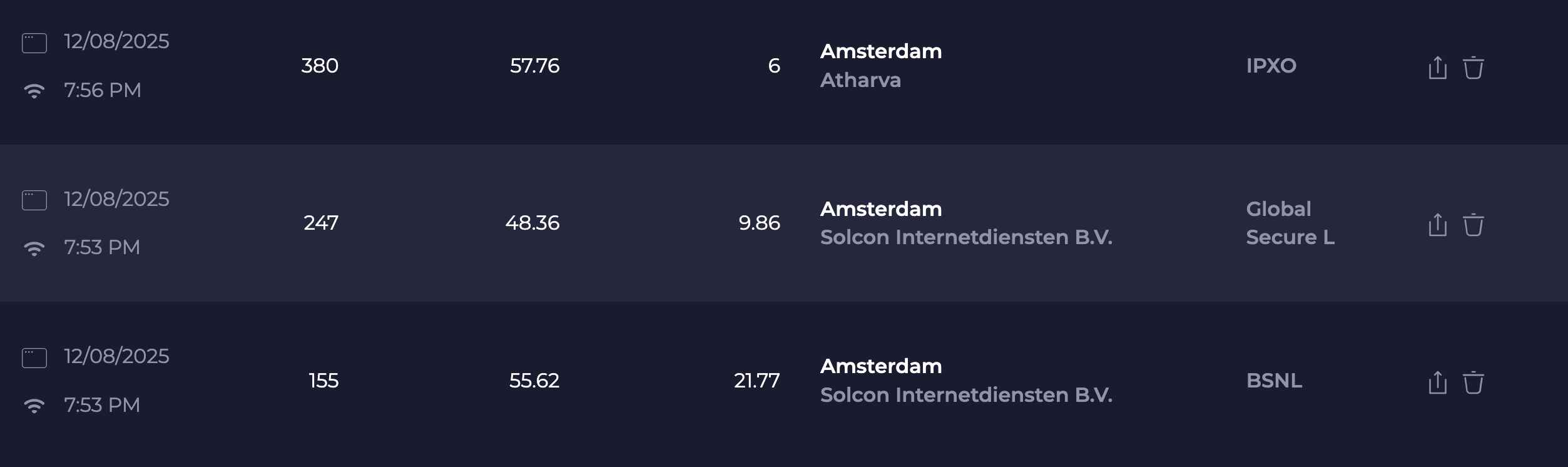
The ping did jump to 380 ms, although my base ping is already high at around 155 ms. Since I do not game on a VPN, the higher ping is not an issue for me.
Upload speed took a noticeable hit. My base upload speed is 21 Mbps. With the India server routed through Singapore, it dropped to 11.27 Mbps, and it went down further to about 6 Mbps on the New York server. Results will vary depending on your internet plan and location.
On Android
The built-in speed tester in ExpressVPN is intuitive and provides a clear, detailed report. While connected to the USA Atlanta server, I measured 68 Mbps download speed, 3 Mbps upload speed, and a ping of 308 ms.
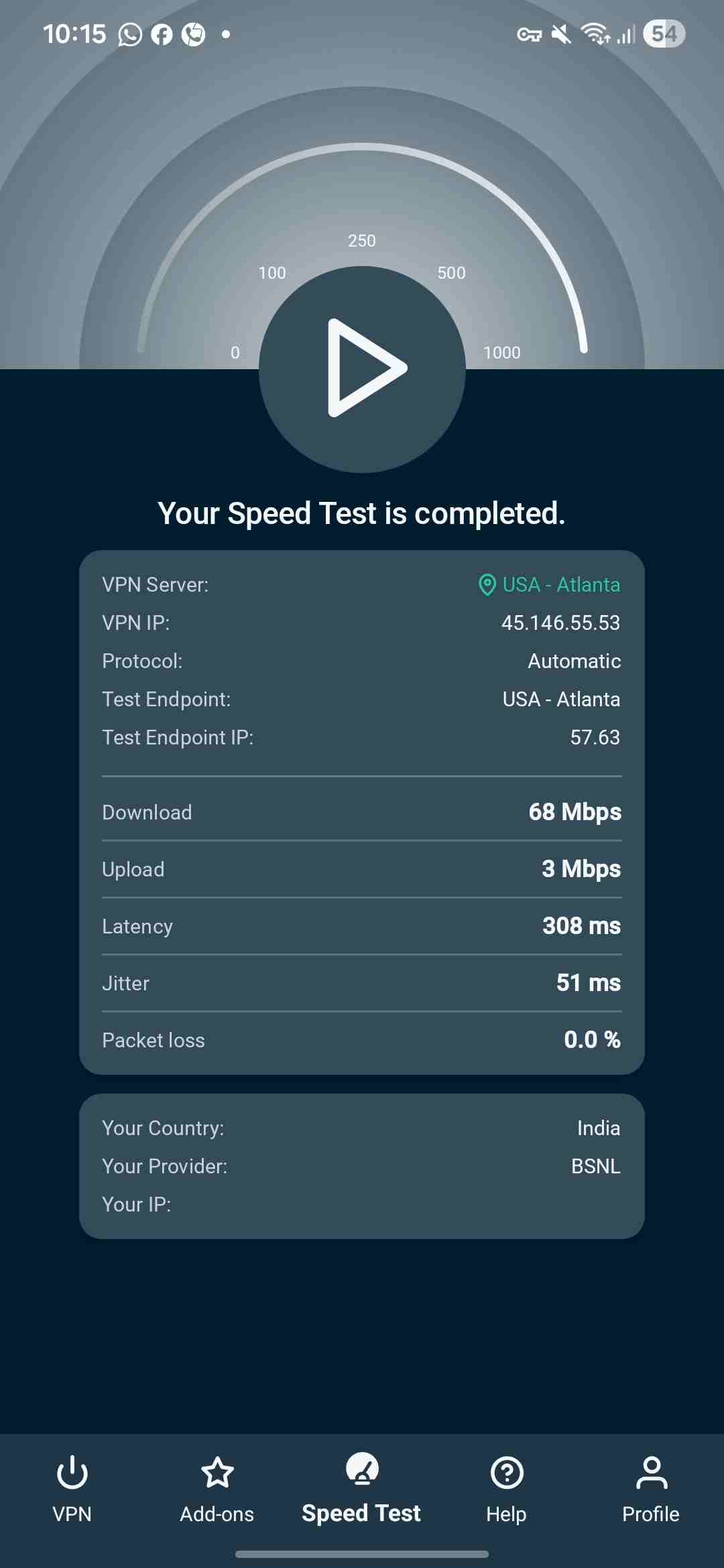
Overall, ExpressVPN delivered strong and reliable speed performance. Download speeds stayed close to the original or dipped only slightly.
There was no major slowdown in daily use and the real world experience is smooth. Streaming in 4K on YouTube, Netflix, and Prime Video worked without buffering, which makes ExpressVPN a solid choice for speed focused users.
Privacy & Security
If privacy and security of your loved ones is what you want, ExpressVPN is no brainer. It offers every thing and follows every protocol for user security and utmost online privacy.
Security
Security is one of the most crucial thing for any VPN and ExpressVPN offers you a complete bundle to keep the user secure while surfing any corner of the internet.
Kill Switch
To access the security settings on PC app, open Preferences and go to the General tab. For additional controls, move to the Advanced Protection section.
One of the most important features for online safety is the Kill Switch. It prevents your real IP address from being exposed if the VPN connection drops by blocking all incoming and outgoing traffic until the secure connection is restored.
In ExpressVPN Mac app, this feature appears as Network Lock under the General tab, so make sure it is enabled.
For Android users, you can spot the Kill Switch under ‘Profile’. Make sure it is toggled on.
Tracker Blocking
Another useful feature is tracker blocking. Trackers monitor your browsing habits including scroll time, activity patterns, and time spent on pages. This data often gets used for targeted advertising.
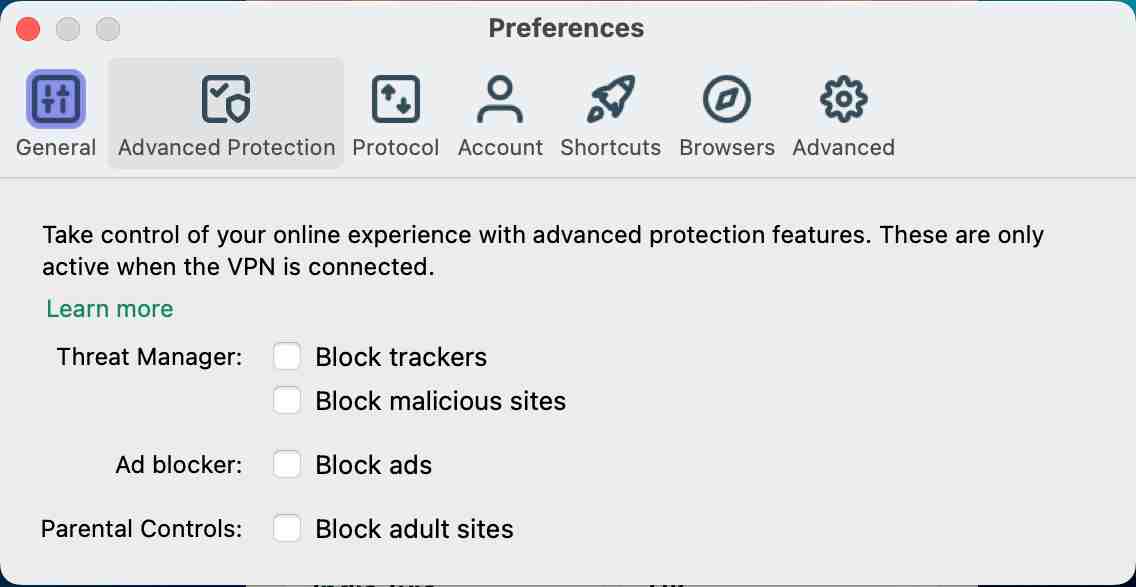
ExpressVPN blocks trackers and malicious sites that may attempt to inject harmful scripts into your device. It also blocks ads if you prefer a cleaner browsing experience.
On Android, you can block trackers, malicious websites under add on tab.
Parental Control
For families, Parental Control is a crucial tool. ExpressVPN allows you to block adult sites with a simple toggle, giving parents peace of mind when kids use the internet through the VPN.
To do that, go to Preferences > Advanced Protection > Block Adult Sites.
On Android, you will this option under ‘Add-ons’.
Split Tunneling
Another feature you will find is Split Tunneling, which lets you choose which apps should or should not use the VPN connection. For example, if you do not want your banking app to route through the VPN, you can exclude it so the app uses your original IP while everything else stays protected through the VPN.
To enable it, go to the Profile tab > Split Tunneling, then select either “Do Not Allow Selected Apps to Use VPN” or “Only Allow Selected Apps to Use VPN.”
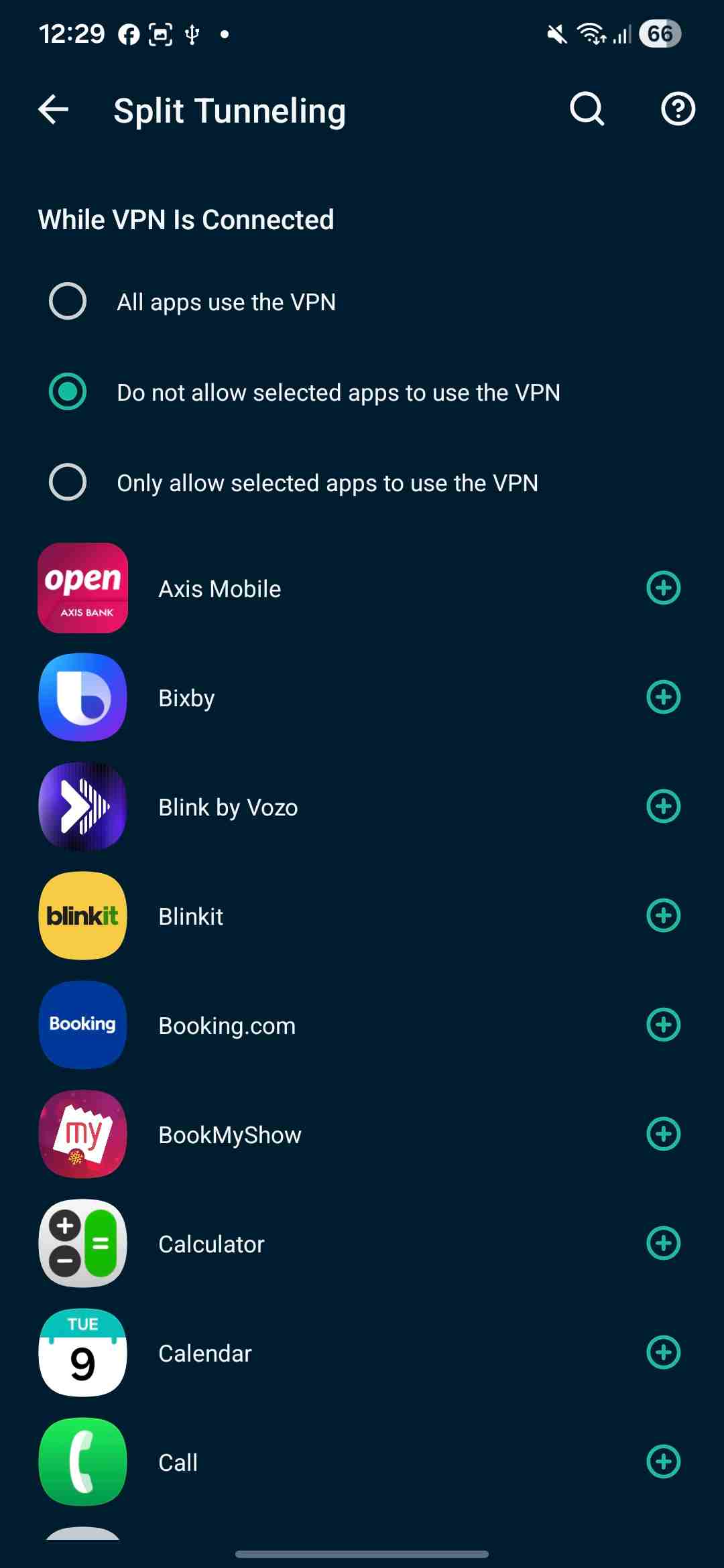
But unfortunately, Split Tunneling is only available on Android. There is no such option on Mac or Windows as of now.
Ad Blocker
Some websites display intrusive ads that disrupt the browsing experience, especially when you are trying to find something important. ExpressVPN’s ad blocker does a great job of filtering out these ads and keeping your browsing smooth and distraction free.

To block ads on Mac or PC, first disconnect the VPN, then go to Preferences > Advanced Protection > Block Ads. Reconnect to the VPN, reload the page, and the ads should be removed.
On Android, open Add-ons and enable Block Ads.
Privacy
ExpressVPN follows a strict no log policy to protect user data and activity. It does not record browsing history, connection logs, or any information that could identify what a user does online. You can review its transparency reports to see independent security audits that confirm these claims.
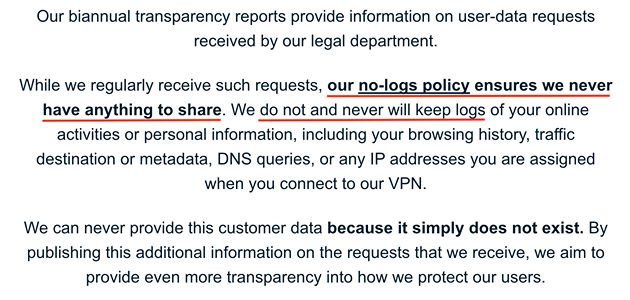
The privacy policy clearly lists the limited data ExpressVPN collects which includes your email address, payment method, and other basic details you provide during sign up. There are no hidden clauses or additional tracking mechanisms that capture activity data.
You can read the full privacy policy to understand how your information is handled. To reinforce its commitment to user protection, ExpressVPN has also undergone third party audits, including reviews by KPMG that verify its privacy commitments.
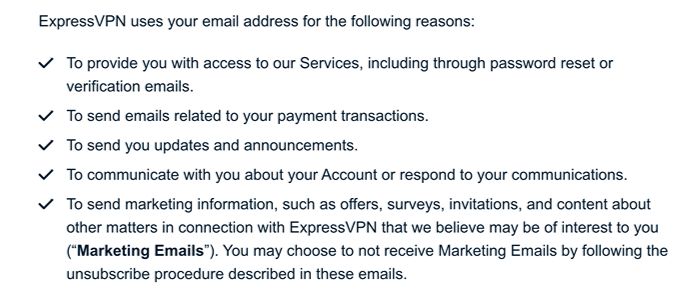
In terms of privacy and security, ExpressVPN meets high standards and follows strict guidelines aimed at safeguarding user interests and maintaining trust.
Streaming & Bypassing Censorship
Many users choose a VPN to watch geo blocked TV shows, movies, live sports, and to access websites, apps, software, or games restricted by the government or by service providers.
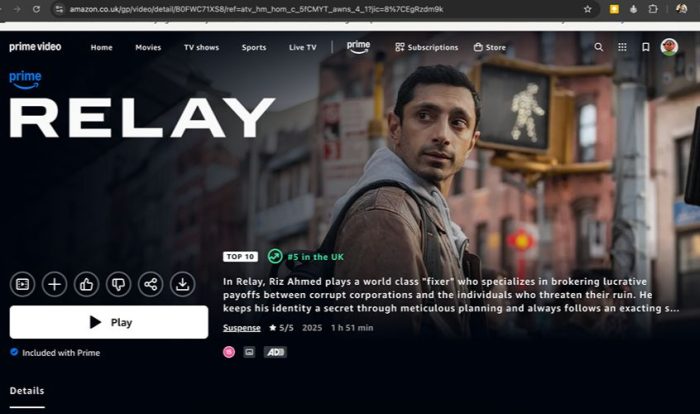
If your main goal is streaming and bypassing censorship, here is how ExpressVPN performs in real situations.
I tested streaming on BBC iPlayer and Amazon Prime Video UK, and both worked flawlessly. There was no buffering, no streaming issues, and no error messages.
Unlike CyberGhost, which offers a dedicated list of streaming-optimized servers, ExpressVPN does not categorize its servers this way. You simply connect to the server in the country you want to access content from (the UK in my case) and start watching your movie or TV show.

ExpressVPN smoothly bypassed regional restrictions and allowed access to content on Amazon Prime Video UK and BBC iPlayer. Streaming worked without errors and there was no buffering or blocked content. The playback quality stayed stable throughout the tests, even during peak hours.
P2P File Transfer
ExpressVPN handles P2P file transfers well and supports torrenting across all its servers. You can access popular torrent websites and download files without restrictions. During testing, downloads remained stable and speeds stayed close to the base connection, which is important for larger files.
I downloaded a 1.97 GB movie file using a torrent client, and the experience was smooth. The download speed averaged around 2 Mbps, and it took about 15 minutes to complete the download in India while connected to a New York server.
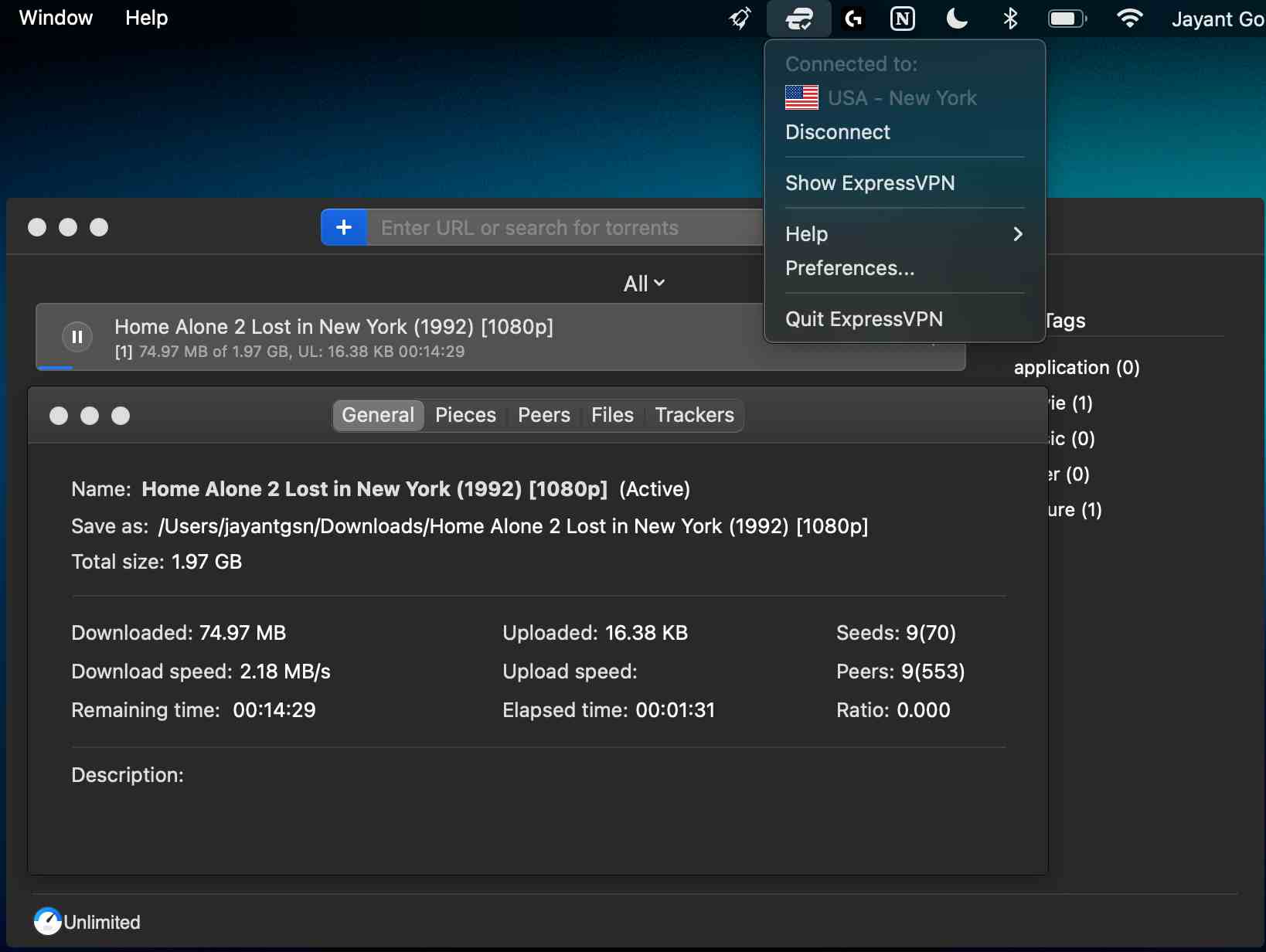
ExpressVPN also hides your IP address during torrenting and encrypts all traffic to protect you from throttling or monitoring by your ISP. The Network Lock feature acts as a safeguard if the VPN disconnects, preventing your real IP from leaking mid transfer.
This makes it a reliable choice for users who rely on torrenting for media downloads, software files, or peer distributed data.
Please note that this is not an endorsement of piracy or downloading illegal or banned content. Even if a VPN allows access, it does not make such actions legal or acceptable. Access torrent websites or download files at your own risk and always follow your local laws.
ExpressVPN Support
Even a top-tier product falls short without reliable support, and ExpressVPN delivers strongly in this area. It offers live chat support as well as email ticketing. Like most VPN services, there is no telephone support, but the available channels are responsive and helpful.
For troubleshooting, ExpressVPN provides detailed guides, blog resources, and an extensive FAQ section that covers most common issues. If you still need assistance, the live chat team steps in quickly. Once you start a chat, you are connected to a support agent within 10 to 15 seconds.
Overall, ExpressVPN’s support team is consistently available and ready to help with setup, payments, renewals, and technical issues. You never feel stuck or left on your own.
ExpressVPN Pricing
ExpressVPN is a premium VPN service that keeps you protected every time you go online. It allows you to access geo blocked content, shields you from trackers, and helps keep your children safe from adult sites and apps. However, this level of security and convenience comes with a premium price tag.
The monthly plan is only practical if you need a VPN briefly with no long term commitment. If you are a regular VPN user, whether casual or professional, the two year plan with four extra months is a far better value.
The basic monthly plan starts from $12.99, Advanced monthly plan starts from $13.99 and Pro monthly plans starts from $19.99 that includes 14 devices, eSIM, complete protection, password manager, dedicated IP.
The Basic plan works well for casual browsing, but if you travel often, work remotely, or want added perks like up to 75 percent off Aircove, unlimited data eSIM days from holiday.com, a Dedicated IP, and a password manager, you are better off choosing the Advanced or Pro plans.
| Plan | Pro 2 Years + 4 Months $7.49 /mo |
Advanced 2 Years + 4 Months $4.49 /mo |
Basic 2 Years + 4 Months $3.49 /mo |
|---|---|---|---|
| Simultaneous Connections | 14 Devices | 12 Devices | 10 Devices |
| Features |
|
|
|
| P2P / Torrenting | Yes | Yes | Yes |
| 45 Days Money-back guarantee | Yes | Yes | Yes |
| Billing | Billed $209.72 for 28 months, then $199.95 yearly | Billed $125.72 for 28 months, then $119.95 yearly | Billed $97.72 for 28 months, then $99.95 yearly |
| Get it | Go to ExpressVPN | Go to ExpressVPN | Go to ExpressVPN |
*Advanced Protection: Block Ads, Adult Sites, Malicious Sites, Trackers
**Lite Protection: Only Block Ads & Malicious Sites
ExpressVPN Pros & Cons
ExpressVPN performs reliably across almost everything that matters, from streaming and P2P file transfers to security, privacy, and ad blocking. Still, like any VPN, it has its strengths and weaknesses, so here is a quick look at the pros and cons to help you decide.d blocking.
Pros
- Super fast and vast server options
- Robust security options
- Supports 10 to 14 Simultaneous Connections
- 30 days Money Back guarantee
- Intuitive user interface across devices
Cons
- Expensive
- No split tunnelling for PC or Mac
- No IKEv2 protocol on smartphone
ExpressVPN Review: Should You Get It?
ExpressVPN is one of those VPNs that consistently delivers where it matters most. It offers strong performance, solid privacy features, and a smooth experience across devices.
It is priced on the premium side, but for users who want a dependable, hassle free VPN for streaming, security, and everyday browsing, it feels justified. If you need a balanced and reliable VPN for regular use or even for professional or travel purposes, ExpressVPN is a strong option to go with. You will not regret the long term commitment.
